
Set up captions in OBS
Keep the DubMochi workspace open while OBS displays your captions.
1. Choose your languages
Sign in with Google. In Live captions, select the language you speak and a translation target, or choose Original only.
2. Add a Browser Source
Copy the overlay URL from the workspace. In OBS, add a Browser Source to your scene and paste the URL into its URL field.
3. Test your scene
Try demo captions to check the placement. For live speech, select microphone mode, allow microphone access and start captions before you speak.
OBS Browser Source settings
Canvas size
1920 × 1080Paste your own overlay URL from the workspace. Keep this link private.
Before you go live
How speech reaches the overlay
Audio input → Silero VAD → Cloudflare Workers → Soniox → DubMochi → OBS
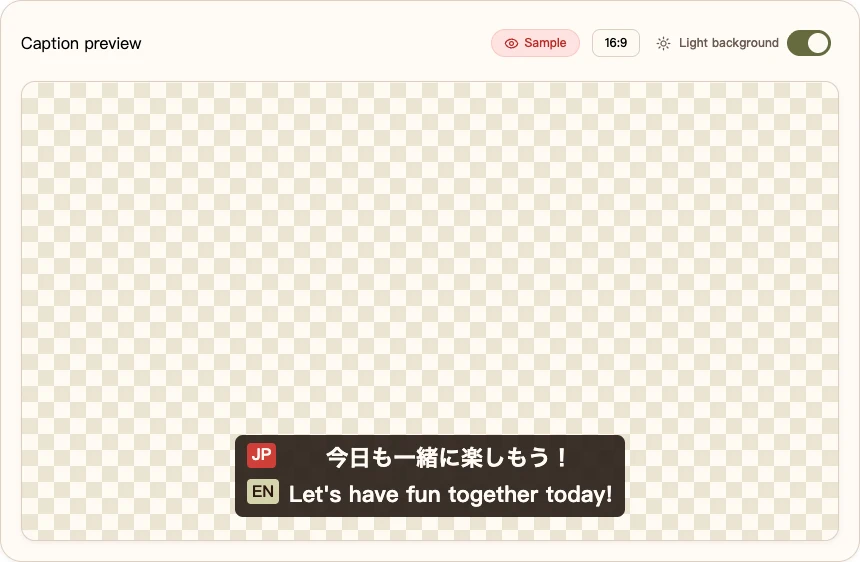
Make your next stream feel closer.
Get started